1
Install the Chrome extension
- Open the DataWing Chrome Web Store page
- Click Add to Chrome
- Pin DataWing to your toolbar (click the puzzle icon → pin)
2
Connect your Shopify store
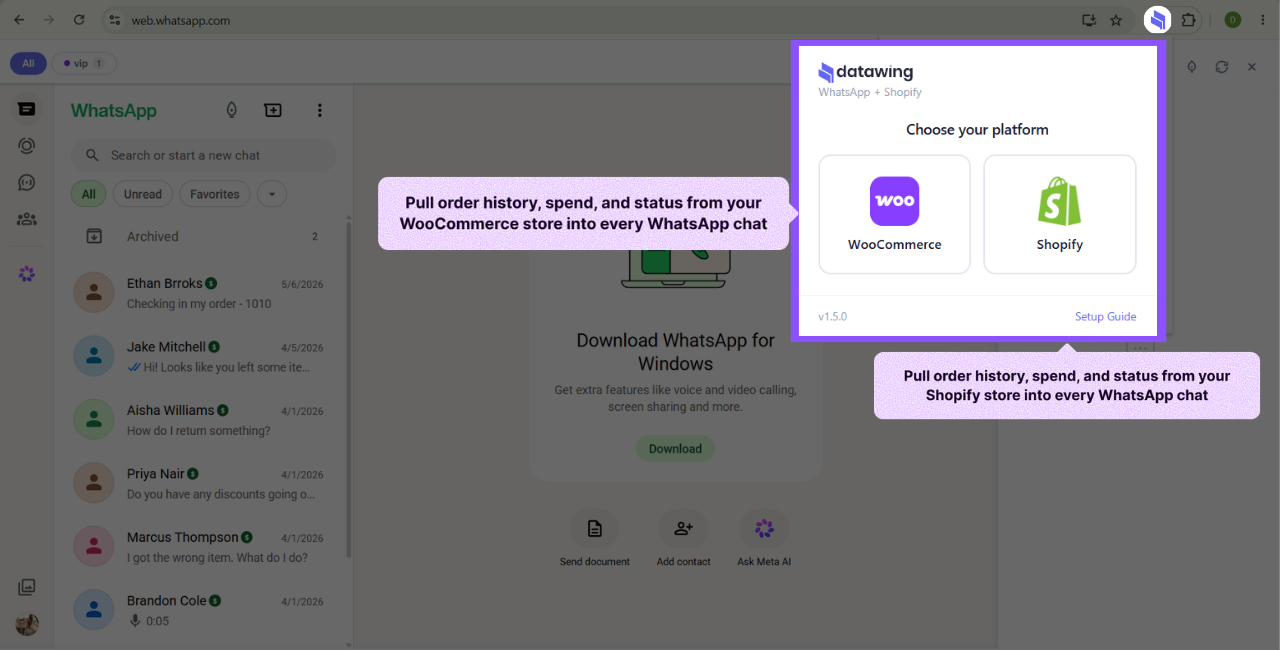
- Click the DataWing icon in your Chrome toolbar
- Select Shopify as your platform
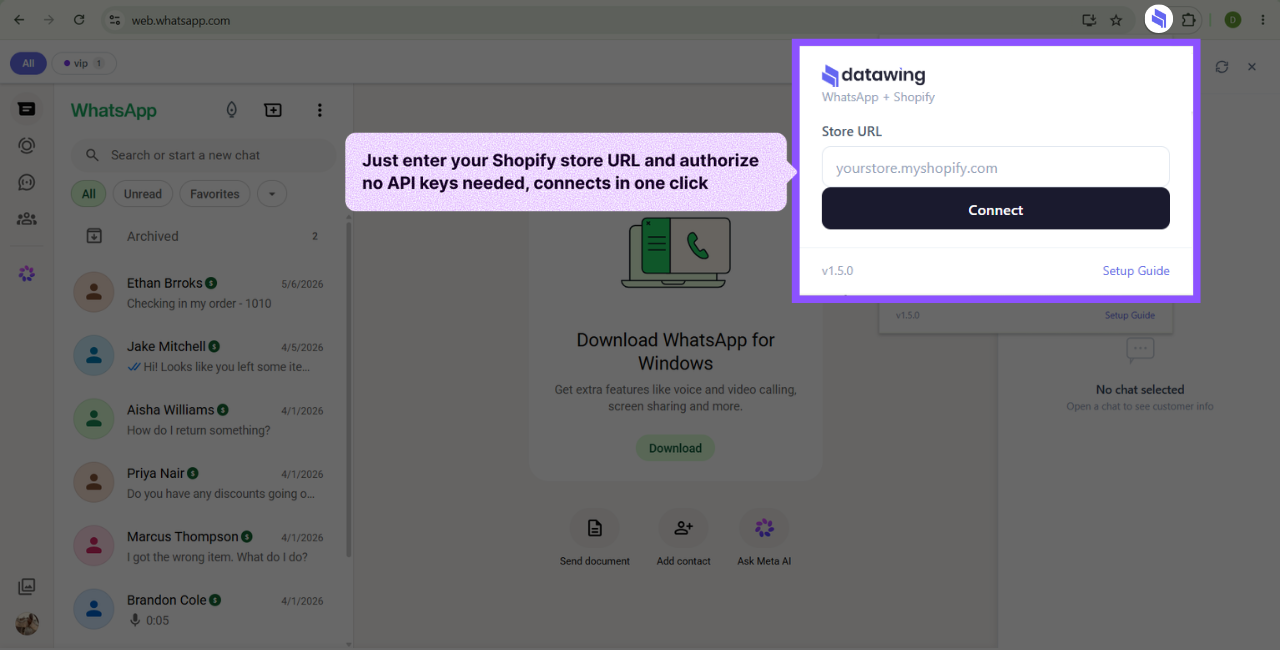
- Enter your store URL (e.g.
yourstore.myshopify.com) - Click Connect
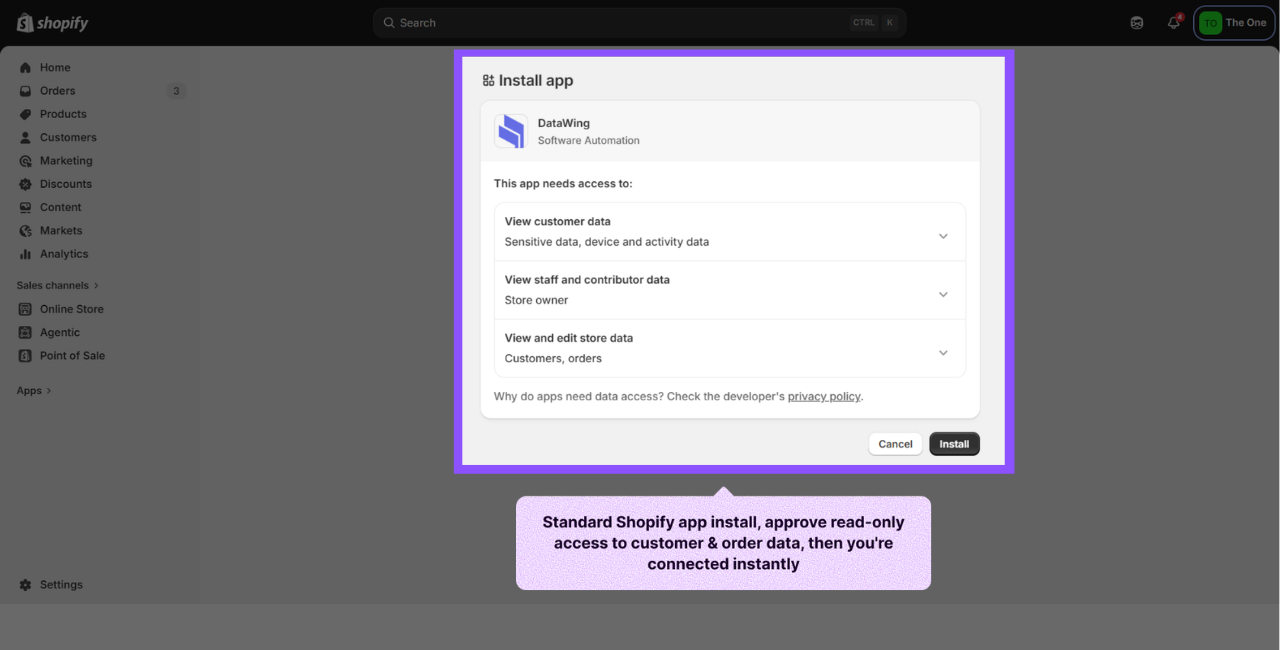
- If prompted, install the DataWing app on your Shopify store and authorize access
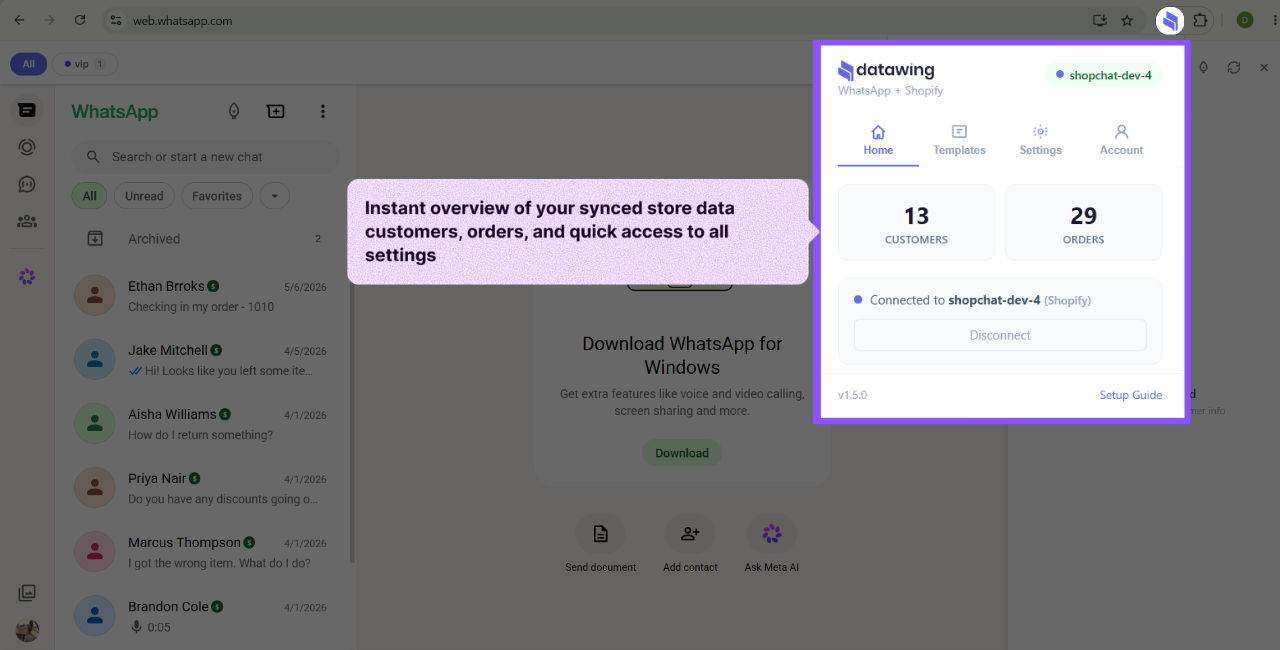
- Once connected, you'll see your store stats in the popup
2b
…or connect your WooCommerce store
- Click the DataWing icon in your Chrome toolbar
- Select WooCommerce as your platform
- Enter your store URL (e.g.
https://yourstore.com). HTTPS is required - In WordPress, go to
WooCommerce → Settings → Advanced → REST API → Add Key - Set permissions to Read, click Generate, and copy the Consumer Key & Secret
- Paste both keys into the extension and click Connect
- Once connected, you'll see your store stats (customers & orders) in the popup
Heads up: Make sure your WordPress permalinks are set to Post name (
Settings → Permalinks). The WooCommerce REST API won't work with the default "Plain" setting.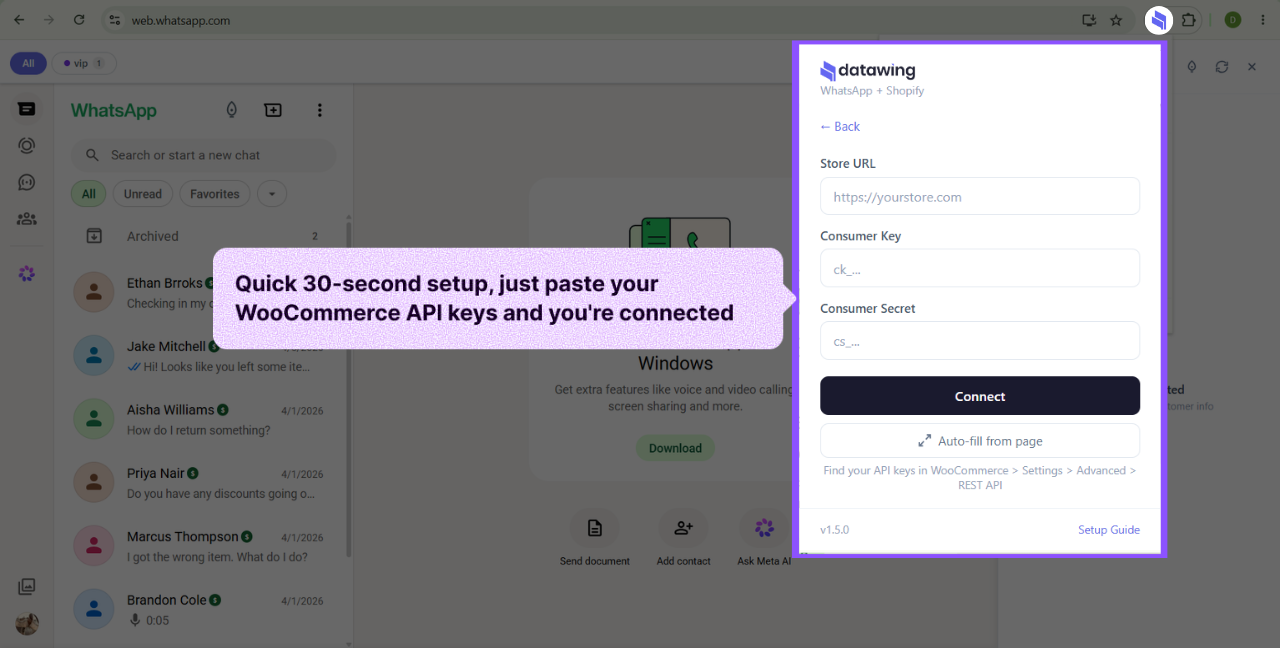
3
Start using it on WhatsApp Web
- Open
web.whatsapp.comand scan the QR code - Click on any chat, and the DataWing sidebar opens automatically on the right
- If the contact's phone number matches a customer in your store, their full profile appears
Tip: The sidebar matches customers by phone number. Make sure your customers have phone numbers saved with the correct country code (e.g.
+62 for Indonesia, +1 for US).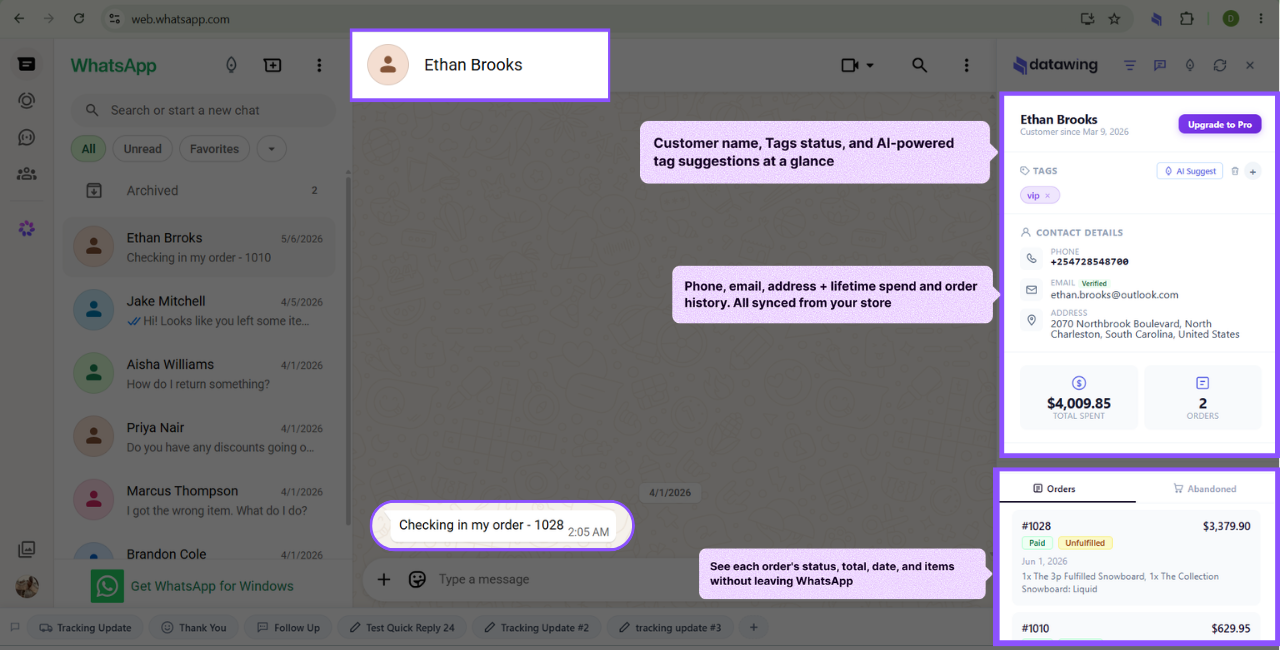
Features overview
Customer Profile
Name, email, phone, address, total spent, and order count.
Order History
Full order list with payment & fulfillment status, and tracking.
Smart Tags
Tag chats (VIP, follow-up, refund, etc.) with AI suggestions.
Filter Bar
Filter WhatsApp chats by tag directly at the top.
Voice Transcription
One-click transcribe voice messages using AI.
Quick Reply Templates
Create reusable message templates with variables.
Bulk AI Scan
Auto-tag all chats at once with AI analysis.
Abandoned Carts
View abandoned checkouts and send recovery links.
Subscription
DataWing offers a 7-day free trial with full access to all features. After the trial, it's $29/month with up to 4 device licenses per account.
Manage your subscription from the Account tab in the extension popup.
Need help?
Contact us at support@datawing.ai and we'll help you get running.